.svg)


.svg)
.svg)

Help Center
.svg)
CaptionMate is able to provide captioning in more than 100 languages.
If you would like captions for calls spoken in a language besides English, please follow the instructions below:
To access captions in a different language:
- Open the CaptionMate app
- Tap Settings
- Tap Languages
- Tap the languages that you would like to access. You can choose more than one language.
- Tap the Select button. This will save your list of preferred languages.
To use captions in a different language during a call:
- During a live call, tap the language menu in the top right corner. (It is directly next to the settings icon). If your current captions are in English, the language menu will be labeled "en-US".
- On the pop-up menu, tap to select your preferred language
- The captions will continue in that chosen language
Pleaes note: CaptionMate is only able to provide captions in the same language that is being spoken. CaptionMate cannot translate speech from one language to another.
Set up automatic call forwarding from your existing cell phone number to your personal CaptionMate number to get all of your calls captioned by our service. If you do not turn on call forwarding, you will not receive captions on incoming calls unless someone calls your special CaptionMate phone number.
To set up call forwarding on an iPhone
- Open the CaptionMate app
- Tap Settings
- Under Calls, turn the Call Forwarding toggle on
- Select your phone carrier
- Tap Activate
- Follow the prompt to call the indicated number
- Depending on your carrier, you may see a confirmation page
- Tap Close or Dismiss
- Test if call forwarding was set up properly. Call your regular phone number from a different phone. You should see the incoming call come through the CaptionMate app. Captions should appear once you answer the call.
To cancel call forwarding on an iPhone
- Open the CaptionMate app
- Tap Settings
- Under Calls, turn the Call Forwarding toggle off
- Select your phone carrier
- Tap Deactivate
- Follow the prompt to call the indicated number
- Depending on your carrier, you may see a confirmation page
- Tap Close
To set up call forwarding on an Android
- Open the CaptionMate app
- Tap Settings
- Under Calls, turn the Call Forwarding toggle on
- Select your phone carrier
- Tap Activate
- Your phone will automatically begin the setup process. Depending on your carrier, you may see a confirmation message.
- Test if call forwarding was set up properly. Call your regular phone number from a different phone. You should see the incoming call come through the CaptionMate app. Captions should appear once you answer the call.
To cancel call forwarding on an Android
- Open the CaptionMate app
- Tap Settings
- Under Calls, turn the Call Forwarding toggle off
- Select your phone carrier
- Tap Deactivate
- Your phone will automatically begin the cancellation process. Depending on your carrier, you may see a confirmation message.
Our captioning service is offered free of charge to individuals with hearing loss because it is paid for by a federal program. As an FCC-certified provider of relay services, we are required by law to obtain certain personal information from you to prevent misuse of this vital accessibility service for the deaf and hard of hearing community. We know that this information is highly confidential and we take strict measures to protect your personal information.
The personal information we are required to provide to the FCC’s Telecommunications Relay Services (TRS) Fund Administrator for compliance purposes include: full name, date of birth, last four digits of your social security number, residential address and cell phone number. Please note that CaptionMate will never sell, distribute, share, or reveal your personal information in any way unless compelled to do so by lawful order.
Please visit the FCC website at www.fcc.gov to find out more about Telecommunications Relay Services. To see the list of certified TRS providers, including CaptionMate, please visit the FCC website here.
Yes, you can use CaptionMate to call phone numbers outside of the United States. To make an international call, first dial "+" on the keypad (the U.S. exit code), followed by the country code and the phone number. To add "+," please firmly press "0" until "+" is added automatically at the top of the keypad screen.
For example, to call a phone number in Germany, open the CaptionMate keypad, dial "+49" and then dial the local phone number.
CaptionMate cannot be used for in-person captioning- or, in other words- when both parties are in the same room together. We are a certified telecommunications relay services (TRS) provider, which means we receive reimbursement from a federal fund reserved for people who need accommodations to communicate by telephone, smartphone, or videophone. It is against the law to use the service as a substitute for hiring an in-person captioner to provide access.
CaptionMate can be used for any phone call a hearing person would make. For example, this could include phone calls to family and friends; work calls; conference calls; online meetings; and even webinars. Again, this would not apply to when people are in the same room.
For resources on how to find options for your in-person captioning needs, check out our favorite resource for accessibility information, See.Hear.Communication.Matters.
If you have any further questions around this topic, please reach out to us at regulatory@innocaption.com
CaptionMate automatically saves the transcript of each call on the device where the call was initiated or received. To view your saved transcripts, follow the steps below.
Please note that due to our privacy policies, your call transcripts are not saved on CaptionMate servers and cannot be accessed or retrieved by us.
To view your call transcripts
- Open the CaptionMate app
- Tap History
- Locate the call you want to view
- Tap the transcript icon to the right of the call information (the icon is a T with lines next to it)
To delete call transcripts
- Open the CaptionMate app
- Tap History
- If you would like to delete a single call transcript:
a) Swipe left on the call
b) Tap Delete - If you would like to delete all call transcripts in your history:
a) Tap the trash can icon
b) Tap Yes, I'm sure
Set up automatic call forwarding from your existing cell phone number to your personal CaptionMate number to get all of your calls captioned by our service. If you do not turn on call forwarding, you will not receive captions on incoming calls unless someone calls your special CaptionMate phone number.
To set up call forwarding on an iPhone
- Open the CaptionMate app
- Tap Settings
- Under Calls, turn the Call Forwarding toggle on
- Select your phone carrier
- Tap Activate
- Follow the prompt to call the indicated number
- Depending on your carrier, you may see a confirmation page
- Tap Close or Dismiss
- Test if call forwarding was set up properly. Call your regular phone number from a different phone. You should see the incoming call come through the CaptionMate app. Captions should appear once you answer the call.
To cancel call forwarding on an iPhone
- Open the CaptionMate app
- Tap Settings
- Under Calls, turn the Call Forwarding toggle off
- Select your phone carrier
- Tap Deactivate
- Follow the prompt to call the indicated number
- Depending on your carrier, you may see a confirmation page
- Tap Close
To set up call forwarding on an Android
- Open the CaptionMate app
- Tap Settings
- Under Calls, turn the Call Forwarding toggle on
- Select your phone carrier
- Tap Activate
- Your phone will automatically begin the setup process. Depending on your carrier, you may see a confirmation message.
- Test if call forwarding was set up properly. Call your regular phone number from a different phone. You should see the incoming call come through the CaptionMate app. Captions should appear once you answer the call.
To cancel call forwarding on an Android
- Open the CaptionMate app
- Tap Settings
- Under Calls, turn the Call Forwarding toggle off
- Select your phone carrier
- Tap Deactivate
- Your phone will automatically begin the cancellation process. Depending on your carrier, you may see a confirmation message.
When you receive a new voicemail, it will appear in your call history shaded in blue. Once you view the voicemail transcript, the blue shading will go away.
Please note that CaptionMate only provides the transcription of the voicemail for you to read - there is no audio recording. You can access your voicemail transcripts by following the steps below.
To read your voicemail messages
- Open the CaptionMate app
- Tap History
- Tap the transcript icon to view the voicemail transcript
To delete a voicemail message
- Open the CaptionMate app
- Tap History
- Tap the transcript icon to view the voicemail transcript
- Tap the gear icon at the top right of the screen
- Tap Delete Transcription
- Tap Okay
You can personalize your CaptionMate voicemail greeting for times when you miss a call. The CaptionMate voicemail system will allow callers to leave you a message when they call you on your CaptionMate app. Please note that you will need to set up call forwarding before recording a voicemail greeting.
To personalize your voicemail greeting
- Open the CaptionMate app
- Tap Settings
- Under Voicemail, make sure the Save voicemails toggle is turned on
- If you want to record a personal greeting, tap Use custom voicemail greeting
- Tap Record new greeting and record your greeting within 10 seconds
- Tap Stop when you're finished recording
- Tap Play to listen to your greeting
- Tap Save Recorded Greeting to confirm
CaptionMate has two different communication channels, Classic and Cloud. Depending on the strength of your WiFi or cellular connection, one channel might work better than the other. If you are experiencing connectivity issues, we recommend changing your channel to see if this improves the quality of your connection.
To change your communication channel on an iPhone
- Open the CaptionMate app
- Tap Settings
- Under Calls, tap Channel
- Select the channel you would like to switch to
- You will be prompted to reset your call forwarding to ensure that incoming calls are captioned. Tap Next
- Select your phone carrier
- Tap Activate
- Follow the prompt to call the indicated number
- Depending on your carrier, you may see a confirmation page
- Tap Close
To change your communication channel on an Android
- Open the CaptionMate app
- Tap Settings
- Under Calls, tap Channel
- Select the channel you would like to switch to
- You will be prompted to reset your call forwarding to ensure that incoming calls are captioned. Tap Next
- Select your phone carrier
- Tap Activate
Your phone will automatically begin the setup process. Depending on your carrier, you may see a confirmation message.
CaptionMate's app interface can be displayed in four different languages: English, Spanish, Vietnamese, and Chinese (Simplified). If you would like the app interface to be displayed in a different language, please follow the steps below.
To change the language of the app interface
- Open the CaptionMate app
- Tap Settings
- Under Technical, tap Application Language
- Select the language that you want to use
To change the app interface back to English
- Open the CaptionMate app
- Tap Settings
- Tap Restore Language
- Tap OK
By default, CaptionMate shows the person you are calling your native cell phone number when you call them. This means that people who already have your contact information will know it is you calling. By combining this feature with automatic inbound call forwarding, you can continue to give out your regular cell phone number as your main contact and still receive captioning on all of your calls.
If you prefer, you can set it so the other party sees your CaptionMate number rather than your cell phone number. Please follow the steps below to change your caller ID setting.
To set up outbound caller ID
- Open the CaptionMate app
- Tap Settings
- Under Calls, find the Outgoing Caller ID toggle. If the toggle is turned on, then the other party will see your cell phone number when you call them.
If you would like the other party to see your CaptionMate number when you call them, tap the toggle to turn it off.
To be able to make an outbound captioned call, you must have first downloaded the CaptionMate app on your phone, registered an account, and logged into the app using your email address and account password. After these steps are complete, follow the steps below to make a call. You have the option of manually entering a number into the keypad, or accessing numbers from your phone's contact list.
To make an outbound call from the Keypad
- Open the CaptionMate app
- Tap the Keypad menu at the bottom of the screen and enter the desired number
- Tap the blue phone icon to place your call
After the call is connected, captions should appear on your screen.
To make an outbound call from your Contact List on an iPhone and Android
- Open the CaptionMate app
- Tap the Contacts menu on the bottom toolbar of the screen
- Select the name of the contact you want to call
- Tap the phone number to make your call
After the call is connected, captions should appear on your screen.
You can see and access your regular saved contacts through CaptionMate by allowing contact permission in Settings. If you aren't seeing the names of saved contacts appear when you receive calls through CaptionMate, that means the app's permission to access your contacts is off.
How to turn on contact permission on iPhone:
- Open CaptionMate
- Tap Settings
- Tap Permissions; it is listed lower on the page under the 'Technical' subheading.
- Tap the button next to Access to contacts. (This should be at the top of the menu)
- Tap Contacts
- Select Full Access
- Tap Allow Full Access to confirm
How to turn on contact permission on Android:
- Open CaptionMate
- Tap Settings
- Tap Permissions; it is listed lower on the page under the 'Technical' subheading.
- Tap the button next to Access to notifications. (This should be at the top of the menu)
- Tap Continue to proceed to your Settings app
- Tap Permissions
- If 'Contacts' is under not allowed, tap it and select Allow
Our captioning is 100% AI. The custom words/phrases option is there for you to add words or names you use frequently that the AI engine may have trouble captioning accurately. This feature allows you to fine tune the captioning for your conversations.
- Open CaptionMate
- Tap Settings
- Tap Custom Words or phrases
- Tap the + icon
- Enter your custom word or phrase
- Tap the + icon again to save the word or phrase
In order to register for an account, you need to download CaptionMate onto your mobile device and log in to make and receive captioned calls on your phone. When you search in the App or Play Store, this is the icon you need to look for:
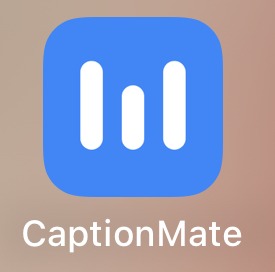
To download the app on iPhone
- Go to the iPhone home screen and open the App Store
- Tap the Search icon at the bottom right corner
- Tap the search bar at the top and type "CaptionMate" to look for our app icon
- Tap CaptionMate in the search results
- Tap the GET button and follow the instructions to download
To download the app on Android
- Go to the Android home screen and open the Play Store
- Tap the search bar at the top and type "CaptionMate" to look for our app logo
- Tap CaptionMate in the search results
- Tap the Install button and follow the instructions to download
Once you have downloaded the app, tap Continue. You will be taken through the new account registration steps where you will need to verify your cell phone number and provide your personal information for compliance purposes. After you complete the registration process you will be logged into the app.
When you first activate the app, you will be asked to grant a series of permissions (access to your microphone, enable notifications, access to your location). Please be sure to allow these permission requests so the app can function properly.
If you have call forwarding set up and you are planning to delete or have already deleted the CaptionMate app, you must disable call forwarding for calls to go to your regular phone app. Deleting the app will not cancel call forwarding.
Call forwarding is a service provided by your cellular provider. You can contact your phone carrier for assistance with deleting call forwarding, or refer to the instructions below.
To cancel call forwarding with AT&T
- From your phone’s home screen, tap the regular phone app
- Enter #21#
- Press the call button, wait for the confirmation tone (or 10 seconds), and tap the end call button
- Call forwarding should be canceled.
To cancel call forwarding with T-Mobile
- From your phone’s home screen, tap the regular phone app
- Enter ##21#
- Press the call button, wait for the confirmation tone (or 10 seconds), and tap the end call button
- Call forwarding should be canceled.
To cancel call forwarding with Verizon
- From your phone’s home screen, tap the regular phone app
- Enter *73
- Press the call button, wait for the confirmation tone (or 10 seconds), and tap the end call button
- Call forwarding should be cancelled.
If you have forgotten your account password and would like to reset it, please follow the instructions below.
To reset your account password
- Open the CaptionMate app
- Tap Login
- Enter your email address and tap Forgot your password?
- Tap Yes
- A temporary password will be sent to you. Enter the temporary password and tap Continue
- Enter your new password
- Re-enter your new password
- Tap Continue
To remove the "Rate the Call" pop up from appearing after each call:
- Open the CaptionMate app.
- Tap on "Settings".
- Under the "Captions" section tap on "Rate after call" and then tap the choice "Once a month".
We understand that CaptionMate is not a good fit for everyone's unique needs! If you are no longer interested in using the app, here are instructions for how to delete your CaptionMate account.
IMPORTANT NOTE: If you have call forwarding set up, you must disable call forwarding for calls to resume going to your regular phone app. Deleting the app will not cancel call forwarding. Call forwarding is a service provided by your cellular provider.
If you use call forwarding, you must disable it in Settings before deleting the app. You will not resume getting phone calls to your regular Phone app until you manually disable forwarding with your phone carrier. The instructions for doing that are below:
- Open CaptionMate
- Tap Settings
- Scroll down, tap the button next to Call Forwarding to turn it off
- Follow the prompts to turn it off
----
Use the following steps to cancel your account:
- Once call forwarding is confirmed off, reopen CaptionMate
- Tap Profile
- Scroll to the bottom, tap Cancel Subscription
- Tap Yes to confirm
- Once your account is deleted, you will be logged out and sent to the Login/register page. You can then delete the CaptionMate app if you like.
.svg)